
Getting Started with the Conversations Tab
CareFunnels' redesigned Conversations experience delivers a faster, clearer inbox with four flexible panels, upgraded filtering (including tags and AND/OR logic), and a modern email composer. Care teams can triage, collaborate, and act without ever leaving the thread.
What is the Conversations Tab in CareFunnels?
The Conversations module in CareFunnels has been completely redesigned to offer a faster, more intuitive, and user-friendly experience. Every element of the interface has been refined for clarity and responsiveness, allowing care teams to manage messages, collaborate, and access client context seamlessly.
The redesign introduces a four-panel layout, a unified right panel for contact context, advanced filtering with tags and AND/OR logic, and an upgraded email composer that supports full-screen drafting or inline replies.
Key Benefits
Understanding these benefits helps administrators and care team members use the updated interface more effectively day-to-day.
Performance improvements: Actions now respond approximately 70% faster, meeting Google's recommended web performance benchmarks.
Quicker navigation: Page navigation is approximately 35% faster.
Lower memory usage: Memory consumption is reduced by approximately 18%, improving performance across all devices.
Single-screen context: Contact details, documents, payments, and activities live alongside the thread for fewer clicks.
Precision filtering: Tags plus AND/OR operators create focused queues you can save as views for one-click access.
Flexible composing: Full-screen email for long drafts; inline replies for quick responses.
Built-in collaboration: Internal comments and @mentions keep team discussions private and organized.
Clear date formatting: Dates now use a consistent format that includes the month name (for example, Jan 5), avoiding confusion from numeric formats.
Navigation and Layout
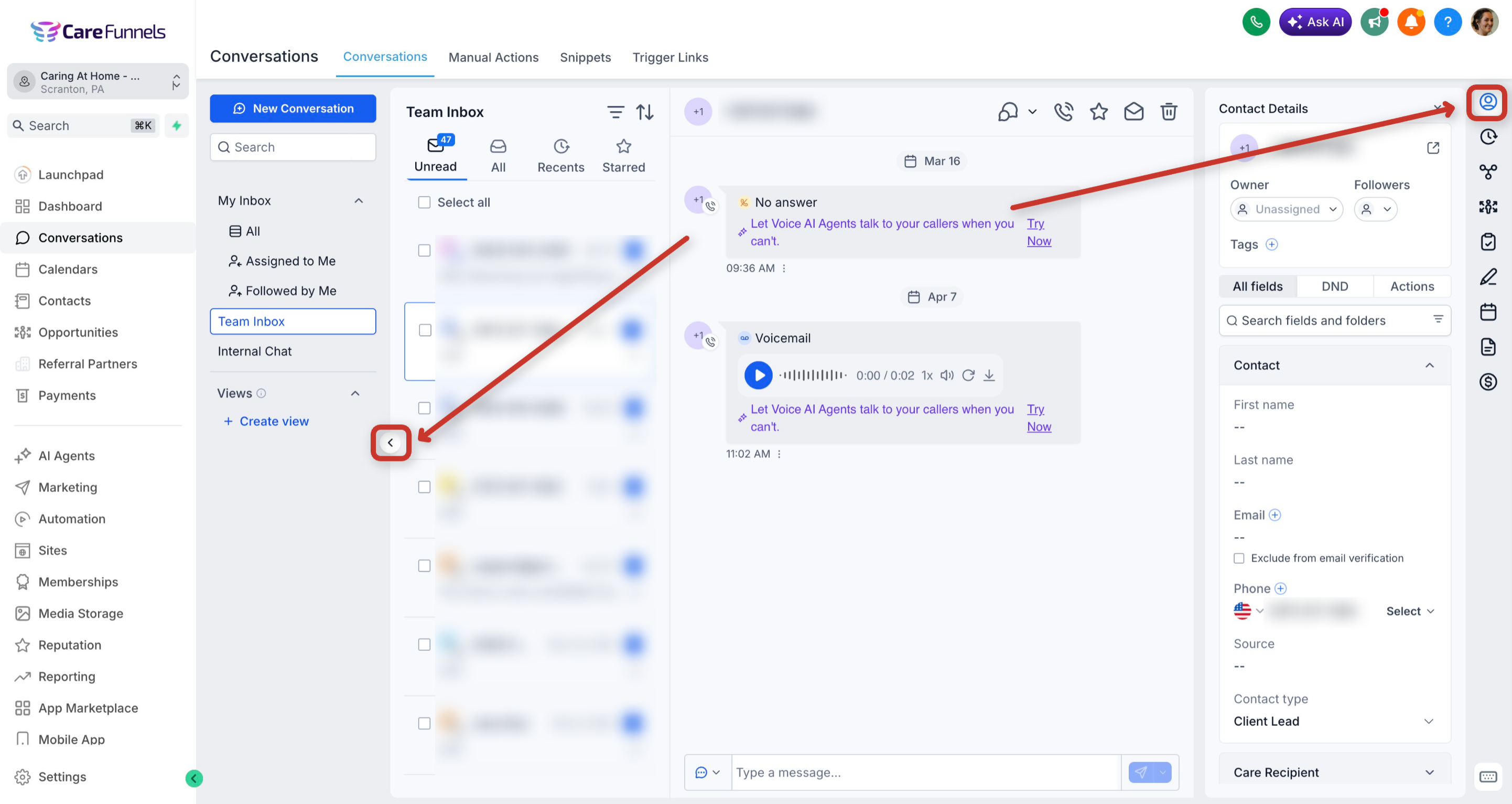
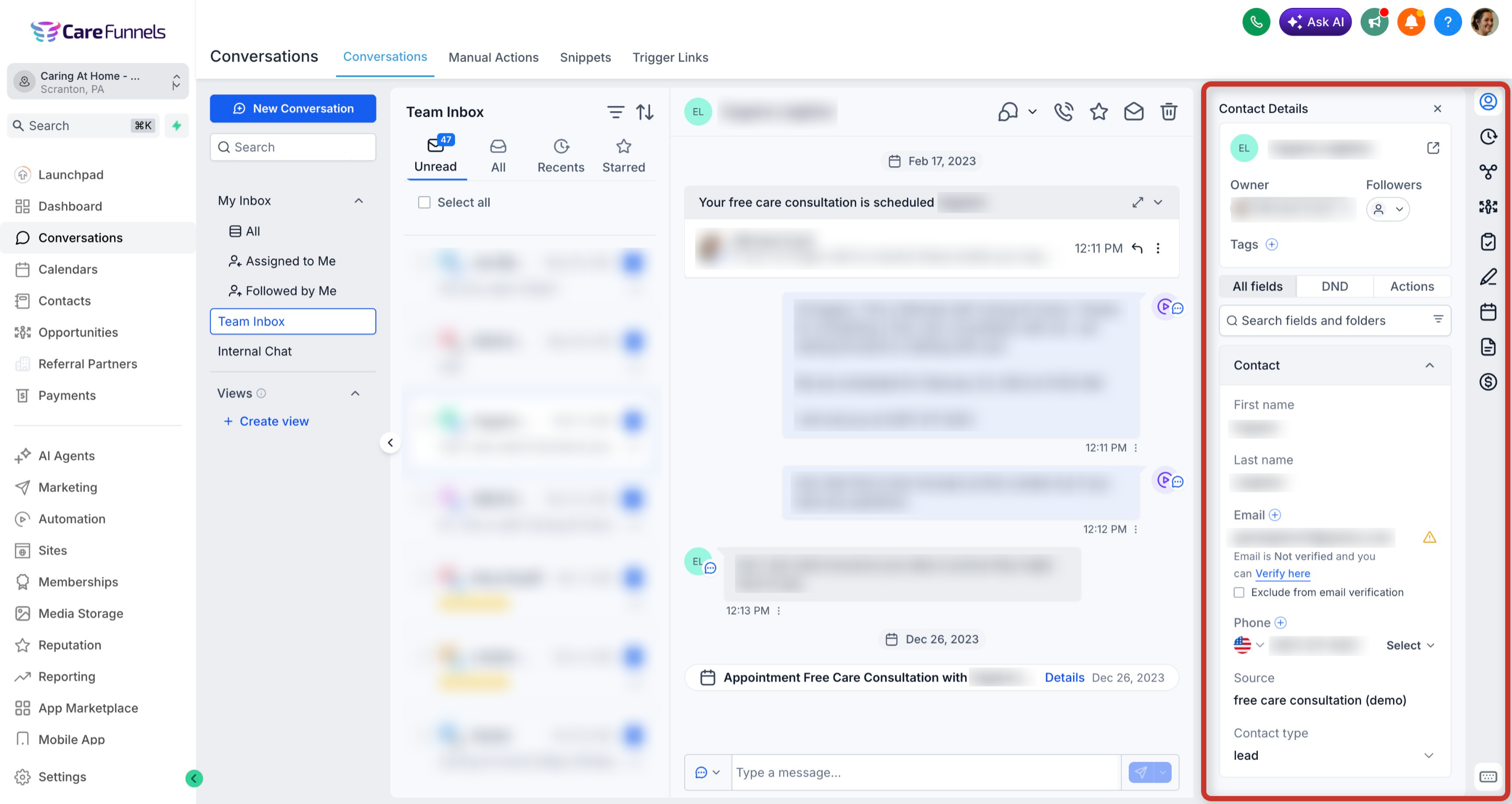
The redesigned Conversations module introduces a four-panel layout for improved organization and clarity. All panels are collapsible so you can adjust your workspace based on your preference.
To collapse or expand the Inbox Panel, click the collapse icon located in the middle of the left panel. To collapse or expand the Right Panel, click the tab icon on the right edge of the screen. This flexibility helps you create more reading or reply space when needed.
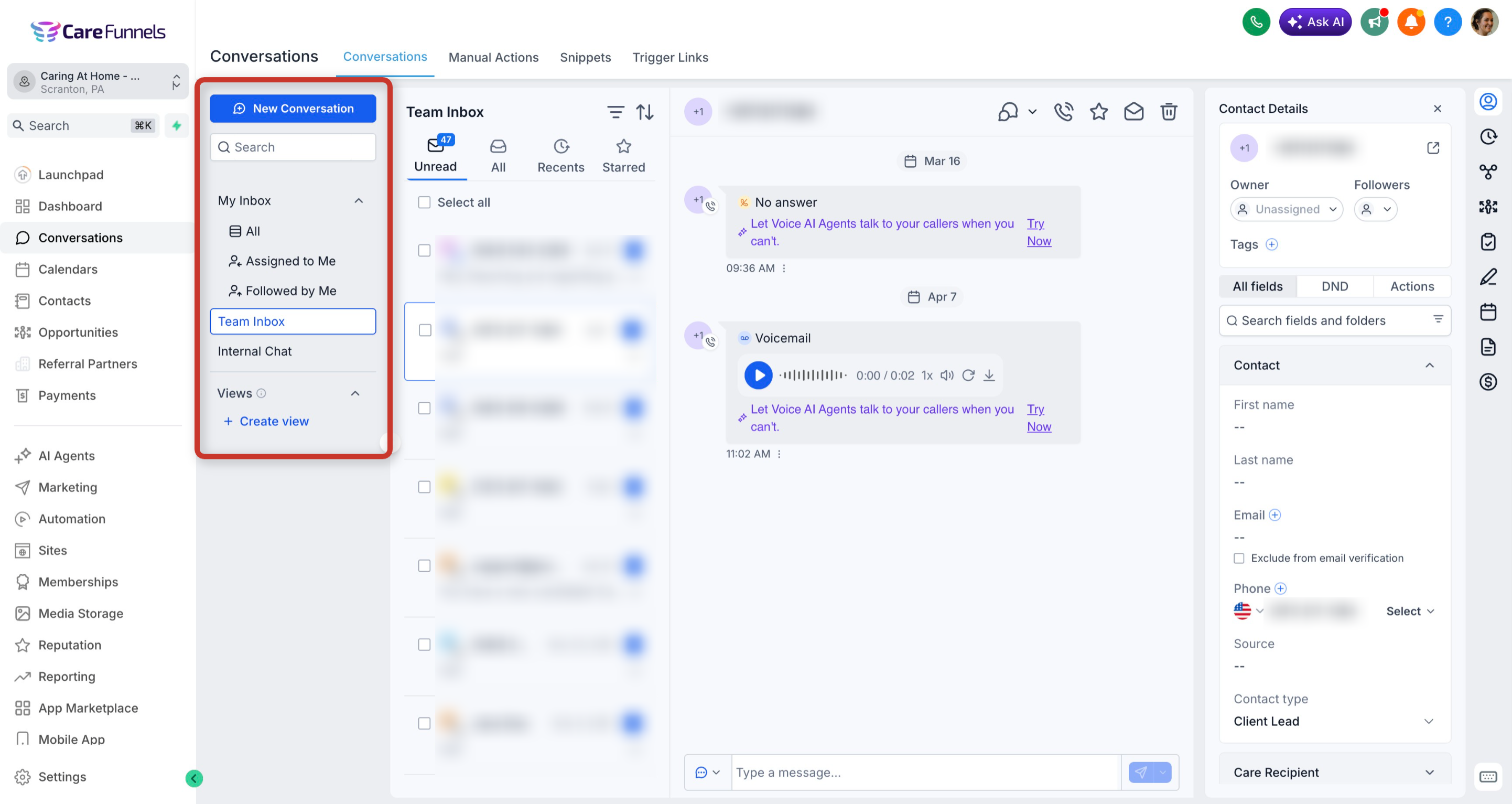
1. Inbox Panel
The Inbox Panel controls which set of conversations you are viewing — personal, team, or internal chat — so you can switch context quickly without changing pages.
My Inbox: Conversations assigned to you or followed by you.
Team Inbox: All conversations within the account (requires full data access).
Internal Chat: Private, team-only discussions separate from client threads.
Access notes: Accounts with Assigned Data Access see My Inbox and Internal Chat only. Users with full access permissions can view and manage all three inboxes.
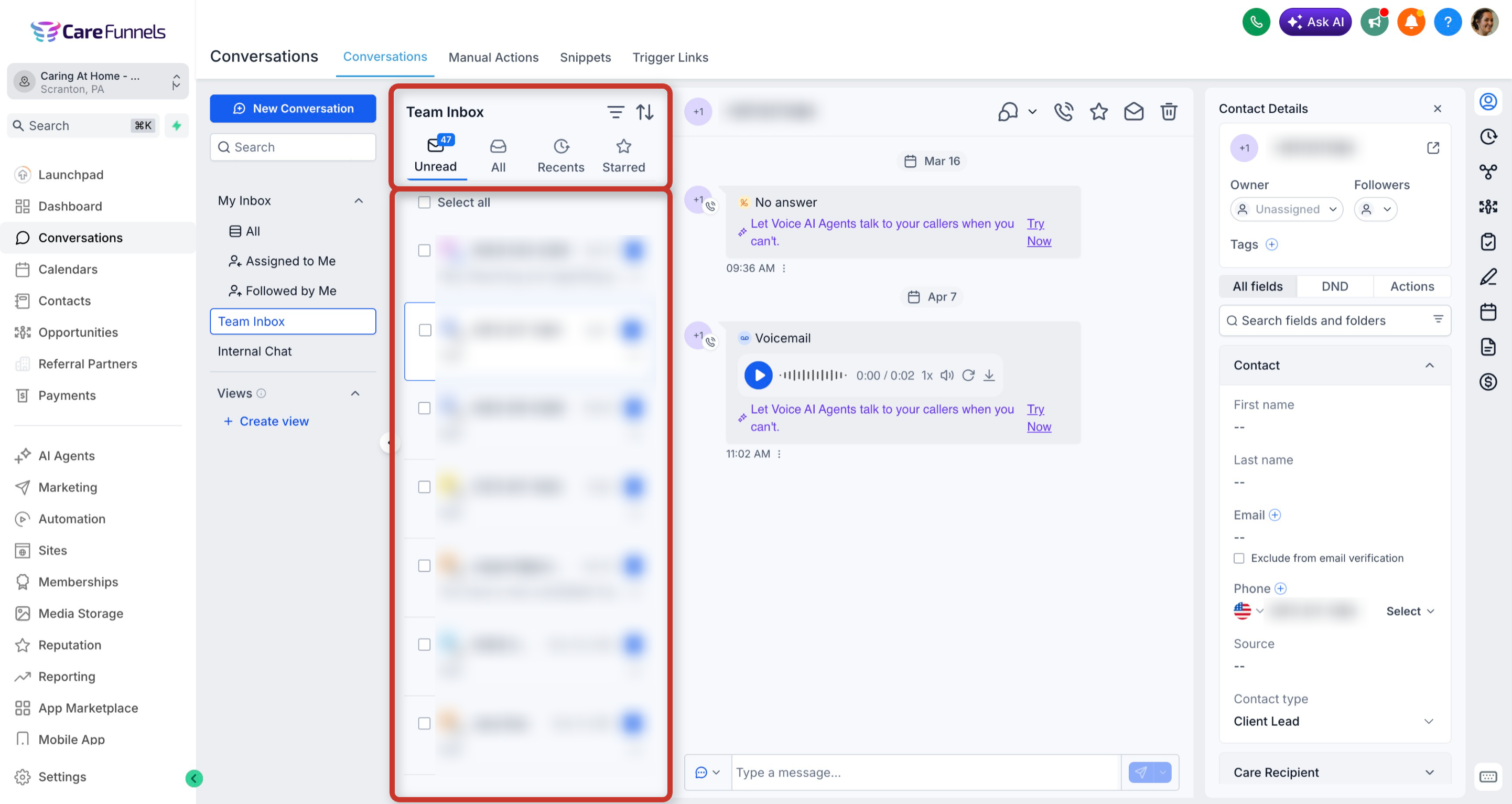
2. Chat List Panel
The Chat List Panel is the second column in the Conversations layout. It displays all conversations based on the inbox, folder, or filter you have selected from the Inbox Panel. Use it to scan, select, and take bulk actions quickly.
Check the select box at the top to enable bulk actions: Mark as Read/Unread, Star/Unstar, and Delete.
Sort conversations by newest or oldest activity.
Use the Filter icon for channel, tags, owner, and date filters — supports AND/OR combinations.
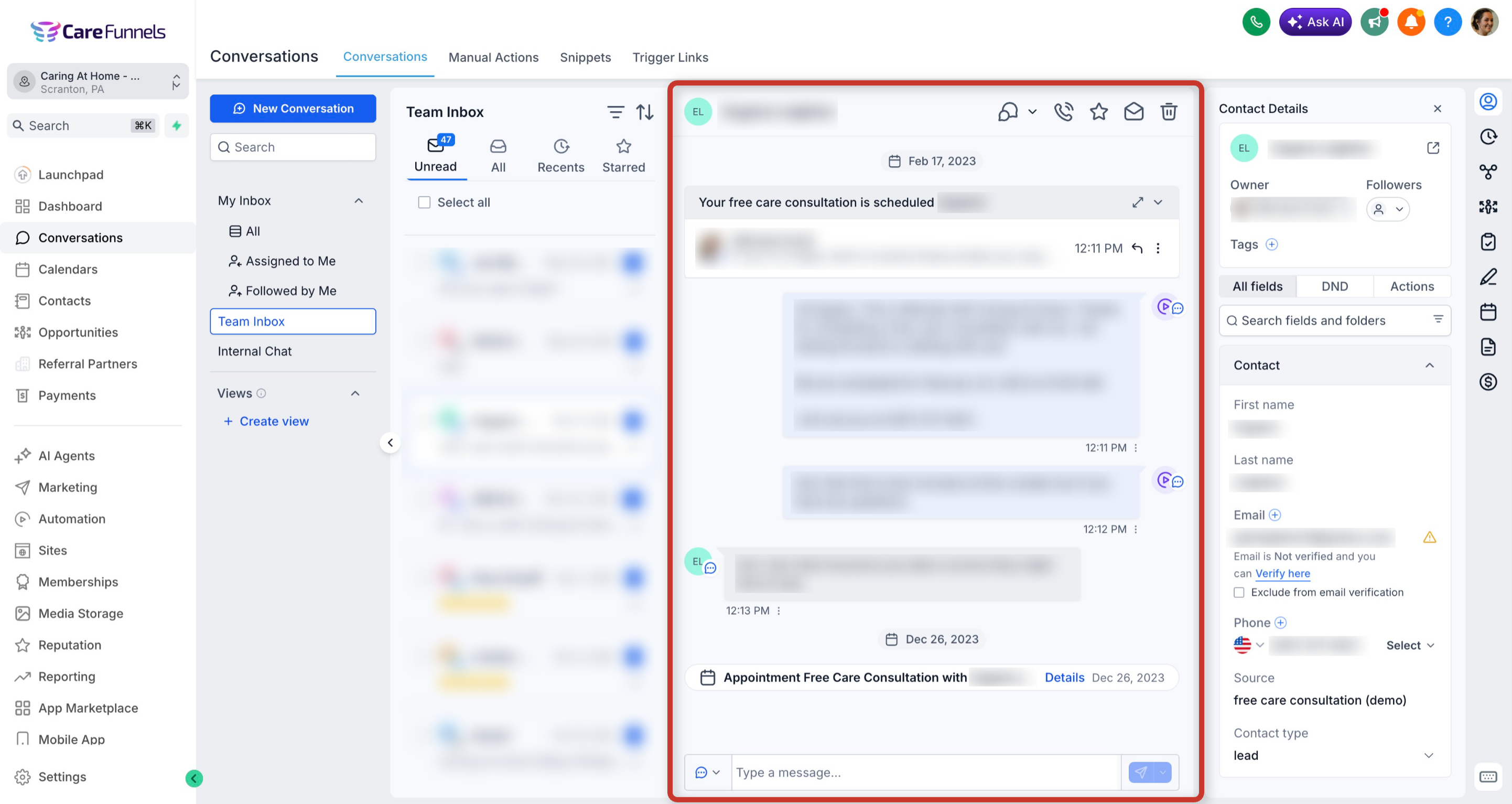
3. Message History Panel
The Message History Panel is your main reading and reply area. It supports multi-channel timelines, quick replies, and message-type filtering to find context fast.
Read the full history across Email, SMS, Facebook/Instagram messages, and Internal Comments.
Filter the visible timeline to focus on specific message types (see Filtering Messages below).
Switching Between Channels
Choose the best channel for each reply without leaving the thread. This is ideal for moving a conversation from SMS to email, or for adding an internal note.
Open the channel selector in the composer to switch between available channels.
Channel selection persists on collapse and expand: CareFunnels remembers the last channel you selected so you can continue where you left off.
Select Internal Comment to add a private note. The client will not be notified.
Internal comment drafts persist across channel switches, composer collapse/expand, and conversation changes.
Message Composer
The composer provides the tools to write clearly, attach files, and send through the correct channel — all from the bottom of the conversation.
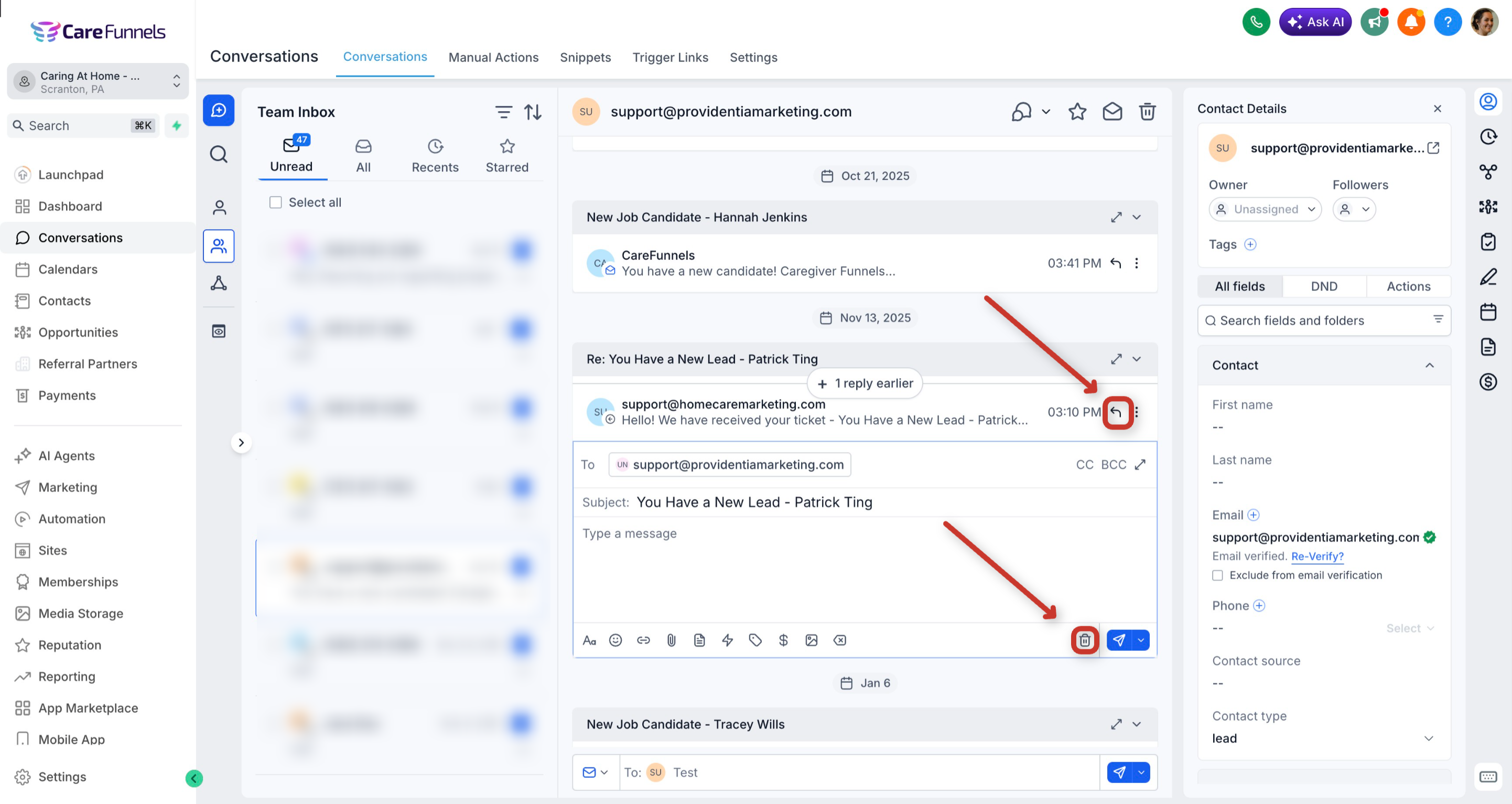
Text formatting and an Inline Reply Composer open directly below the active message, keeping context visible while replying.
Full-screen mode is available for longer replies.
Attach files and links, or paste images directly from your clipboard (Ctrl+V on Windows, Cmd+V on Mac).
Use the send icon on the right to send quickly.
Replies send via the channel currently selected in the composer.
Filtering Messages Within a Conversation
Timeline filters help you isolate specific parts of a long thread — such as only emails, only internal notes, or only activities — so you can find context quickly.
Use the message filter at the top-right of the timeline to show: All, Conversations (direct exchanges with the contact), Activities (appointments, updates, etc.), Email, Internal Comment, Contacts, Opportunities, Payments, Invoices, or AI Action Logs.
Use the search bar within the filter menu to locate message or activity types faster.
4. Right Panel
The Right Panel centralizes contact context so you can view and edit details, files, payments, and related records without leaving the conversation. Everything available on the Contacts page — including custom fields, folders, and actions — is now integrated into this panel.
From the Right Panel you can:
View and edit contact fields, custom fields, folders, tags, and owner assignment.
Create and view opportunities, appointments, invoices, and payments.
Switch between tabs: Contact, Activities, Associations, Documents, and Payments.
Tags Filter
You can now filter conversations based on tags, allowing precise segmentation by category or workflow. This is especially useful in care settings for prioritizing urgent cases or managing follow-ups.
Examples:
View all conversations tagged as High Priority.
See all leads marked with Follow-up Required.
Apply multiple tags simultaneously for refined filtering.
AND / OR Operators
The filtering system supports conditional operators, giving you flexibility to combine multiple criteria and build focused conversation queues.
Use AND to display conversations that meet all selected conditions. For example: conversations tagged High Priority AND assigned to you.
Use OR to display conversations that meet any of the selected conditions. For example: conversations from Email OR SMS channels.
This makes it easier to build complex filters that match your specific workflow — from isolating urgent support requests to reviewing multi-channel activity.
Email Composer Enhancements
The email composer has been upgraded for a clearer, smoother, and more flexible writing experience.
Full-View Composer
You can expand the composer into a full-view layout to draft longer or more detailed emails comfortably. This provides more space for formatting, adding attachments, and reviewing your message before sending.
Inline Reply Experience
When replying to an existing email thread, the composer automatically opens directly below the active email. This layout keeps the conversation history visible while you type. To close or exit the reply composer, click the ⌄ icon on the right side of the composer toolbar.
Keyboard Shortcuts
Keyboard shortcuts speed up navigation and replies. Press ? anywhere in Conversations to open the full shortcut list.
Cmd/Ctrl + K: Global search
Cmd/Ctrl + Enter: Send message
Cmd/Ctrl + Shift + E: Toggle full-screen composer
Press ?: Open full shortcut list
Frequently Asked Questions
Q: Do my saved replies, templates, and signatures carry over?
Yes. Existing canned responses, templates, and signatures continue to be available in the new composer.
Q: Can I customize keyboard shortcuts?
Press ? to open the shortcut list. Shortcuts are not customizable at this time.
Q: Are filters available for all channels?
Yes. Use the Filter icon to include or exclude channels such as Email and SMS. Combine filters with tags and owner assignments using AND/OR logic.
Q: Can teams share Saved Views?
Saved Views can be created for quick access. Sharing and visibility depend on your workspace configuration and user permissions.
Q: Does the new experience change workflow automations or triggers?
No. Workflows and automations tied to Conversations continue to function exactly as before.
Q: Where do I find Internal Comments and @mentions?
Choose Internal Comment from the channel selector to add a private note, then use @mentions to notify teammates directly.