
How do I tag or label a contact?
Tags are a simple way to organize your contacts in CareFunnels. You can use them to group people by type — like "Potential Client," "Caregiver Applicant," or "Referral Partner" — so you can easily find and filter them later.
Note: Contact management is available on the CareFunnels CRM plan and all Marketing In A Box plans. If you don't see the Contacts option in your menu, reach out to your CareFunnels account manager to learn more about upgrading.
Where to find this
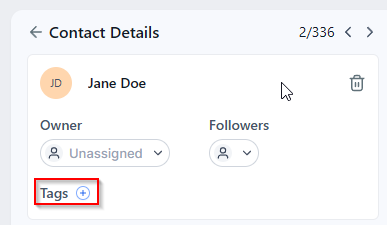
Contacts → Open a contact → Tags (under their name)
Steps
From the left-hand menu, click Contacts.
Find the contact you want to tag and click on their name to open their record.
Under their name, find the Tags field.
Click into the Tags field and either select an existing tag from the list or type a new one and press Enter to create it.
Your changes save automatically — no need to click a Save button.
Pro tip
Create a consistent set of tags across your team so everyone labels contacts the same way. For example: Client Lead, Caregiver Lead, Referral Partner, Do Not Contact. This makes filtering and follow-up much easier as your contact list grows.
Common questions
Can I add more than one tag to a contact? Yes! You can add as many tags as you need to a single contact. For example, someone could be tagged as both "Caregiver Lead" and "Spanish Speaking."
Can I remove a tag from a contact? Yes. Open the contact, find the Tags field, and click the X next to the tag you want to remove.
Can I search or filter my contacts by tag? Yes. From the Contacts list view, you can filter by tag to pull up everyone with a specific label — great for bulk follow-ups or reviewing a specific group.
Who can add or edit tags? Anyone on your team with access to the Contacts section can add or edit tags. If you want to limit who can make changes, speak with your CareFunnels account manager about user permission settings.