
How do I merge duplicate contacts?
If the same person appears more than once in your contact list, you can merge them into a single record. This keeps your database clean and makes sure all their information stays in one place.
Note: Contact management is available on the CareFunnels CRM plan and all Marketing In A Box plans. If you don't see the Contacts option in your menu, reach out to your CareFunnels account manager to learn more about upgrading.
Where to find this
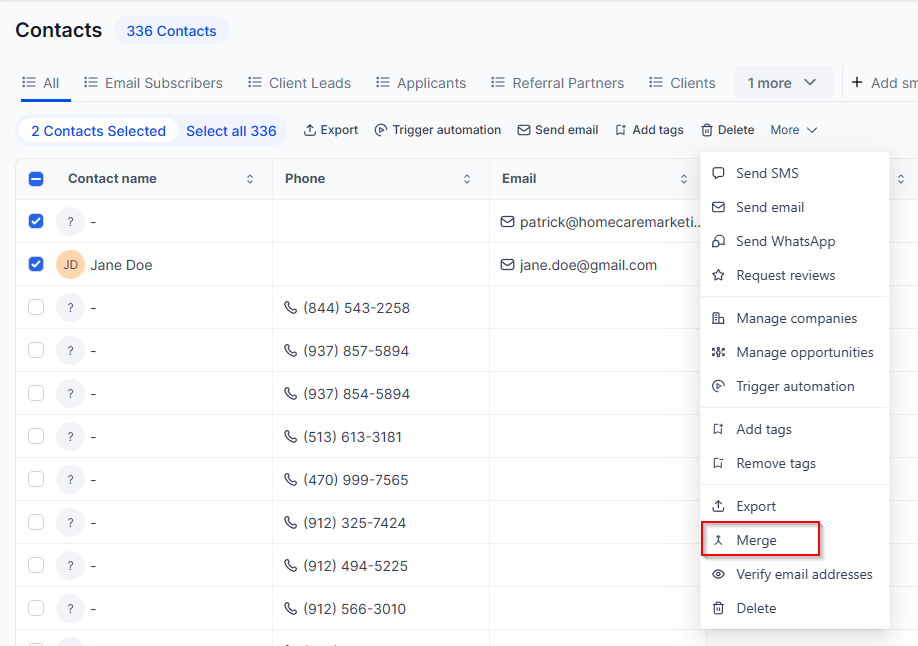
Contacts → Select contacts → More → Merge
Steps
From the left-hand menu, click Contacts.
Search for the contact you want to merge using the search bar in the top right.
Check the box next to each duplicate contact you want to merge. You'll see a toolbar appear at the top showing how many contacts are selected.
Click More in the toolbar.
Click Merge from the dropdown menu.
Review the information from each duplicate record and choose which values you want to keep for the merged contact.
Confirm the merge. The duplicates will be combined into one contact record.
Pro tip
Before merging, double-check that you're actually looking at the same person — not two different people with similar names. Check the phone number or email address to be sure.
Common questions
What happens to the information from the contact I don't keep? When you merge, CareFunnels lets you choose which details to keep from each record — so you don't have to lose any important information. You pick the best version of each field before confirming.
Can I merge more than two contacts at once? You can select multiple contacts before clicking Merge, but we recommend merging two at a time to make sure the right information is kept for each field.
Can I undo a merge? Merges cannot be undone automatically. If you merged contacts by mistake, you'll need to manually update the contact record or reach out to your CareFunnels account manager for help.
How do I prevent duplicates from being created in the future? CareFunnels checks for duplicates during imports using phone number and email address. Make sure your team is searching for a contact before adding a new one manually to avoid creating duplicates over time.