
Why am I not receiving notifications for new messages?
If you're missing alerts when a lead reaches out, it's usually because your notification settings need to be turned on. CareFunnels lets you choose how you want to be notified — inside the app, by email, or by text — and for which types of activity.
Where to find this
Settings → My Profile → Notifications
Steps
From the left-hand menu, click Settings.
Click My Profile in the left sidebar.
Click the Notifications tab at the top of the page.
You'll see a list of notification types with three columns — In-App, Email, and SMS. Check the box for each notification type and channel you want to turn on.
Your changes save automatically.
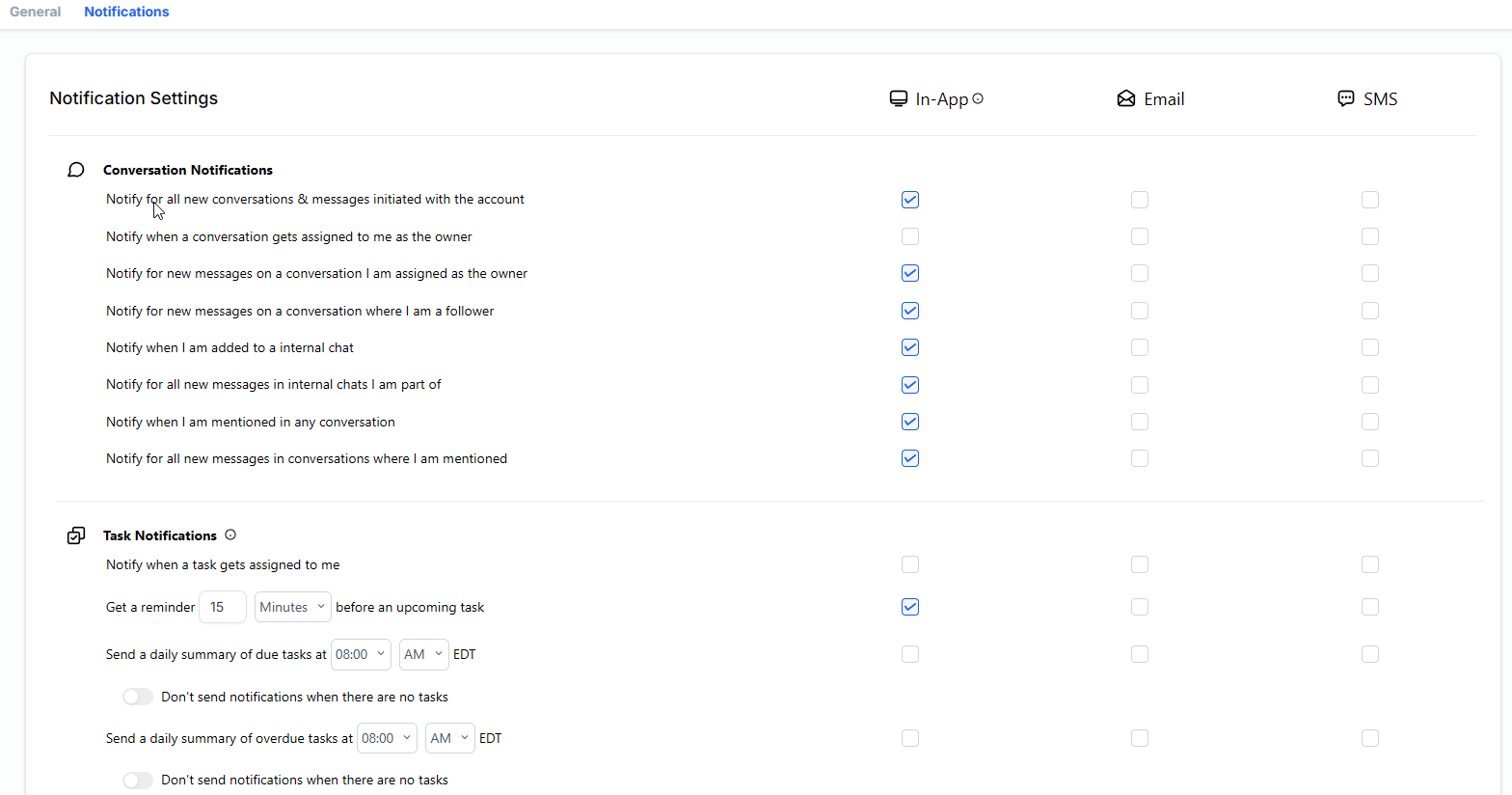
What each notification type means
Conversation Notifications
Notify for all new conversations & messages initiated with the account — get alerted any time someone starts a new conversation with your agency
Notify when a conversation gets assigned to me as the owner — get alerted when a conversation is assigned specifically to you
Notify for new messages on a conversation I am assigned as the owner — get alerted when someone replies to a conversation you own
Notify for new messages on a conversation where I am a follower — get alerted on conversations you're following but don't own
Notify when I am added to an internal chat — get alerted when a teammate adds you to an internal team conversation
Notify for all new messages in internal chats I am part of — get alerted on all messages in internal chats you're part of
Notify when I am mentioned in any conversation — get alerted when a teammate tags you in a conversation
Notify for all new messages in conversations where I am mentioned — get alerted on follow-up messages in conversations where you've been mentioned
Task Notifications
Notify when a task gets assigned to me — get alerted when someone assigns you a task
Get a reminder before an upcoming task — get a reminder a set number of minutes before a task is due
Send a daily summary of due tasks — receive a daily list of tasks due that day
Send a daily summary of overdue tasks — receive a daily list of tasks that are past due
What each notification channel means
In-App — a notification appears inside CareFunnels while you're logged in
Email — a notification is sent to your email address on file
SMS — a notification is sent as a text message to your phone number
Pro tip
At minimum, turn on In-App and Email notifications for "all new conversations & messages initiated with the account." This ensures you never miss a new lead reaching out — even when you're not actively in CareFunnels.
Common questions
I turned on notifications but I'm still not getting them. What should I try?
Make sure your browser allows notifications from CareFunnels (check your browser's notification permissions)
Check your spam or junk folder if you enabled email notifications
Make sure the phone number on your profile is correct if you enabled SMS notifications
Try logging out and back in, then check again
Can each team member have their own notification settings? Yes. Notification settings are personal — each team member sets their own preferences under their own profile. Changes you make only affect your account.
Can I turn off all notifications? Yes. Simply uncheck all the boxes in your Notification Settings. Keep in mind that turning off all notifications means you'll need to manually check CareFunnels for new messages and activity.