
Pipeline Navigation Improvements & Stage Colors
Managing pipelines just got faster—and a lot more visual.
What’s New
Create and edit pipelines directly from the pipeline dropdown
Assign colors to each stage within a pipeline
Choose how colors appear: Default (no color), Colored dot or Background tint
Stage colors now reflect across key views like Kanban and record details
How It Works
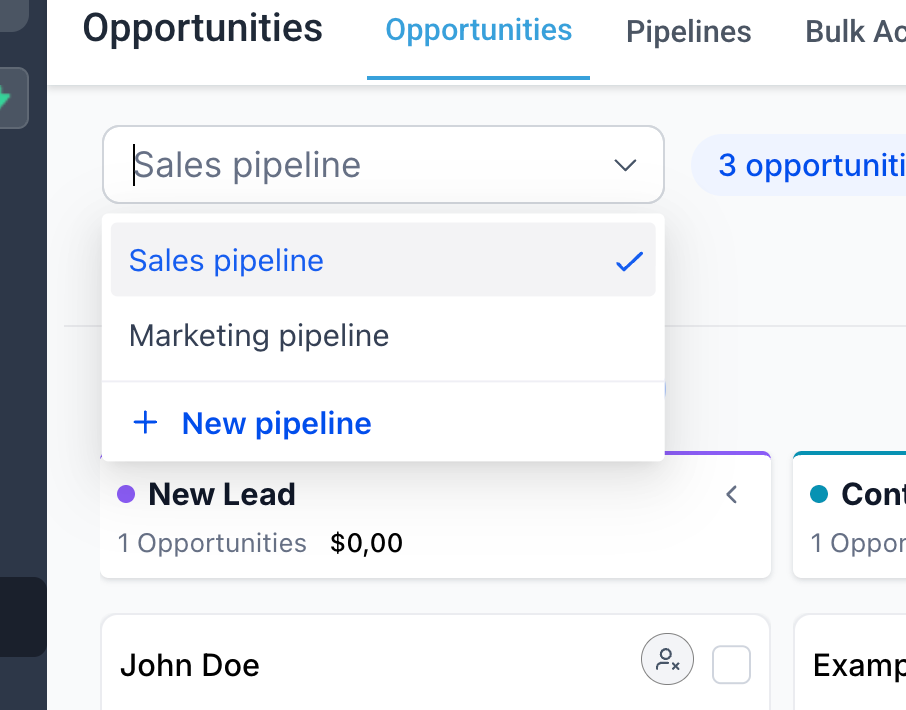
Open the pipeline dropdown in Opportunities
Click + New pipeline to create instantly
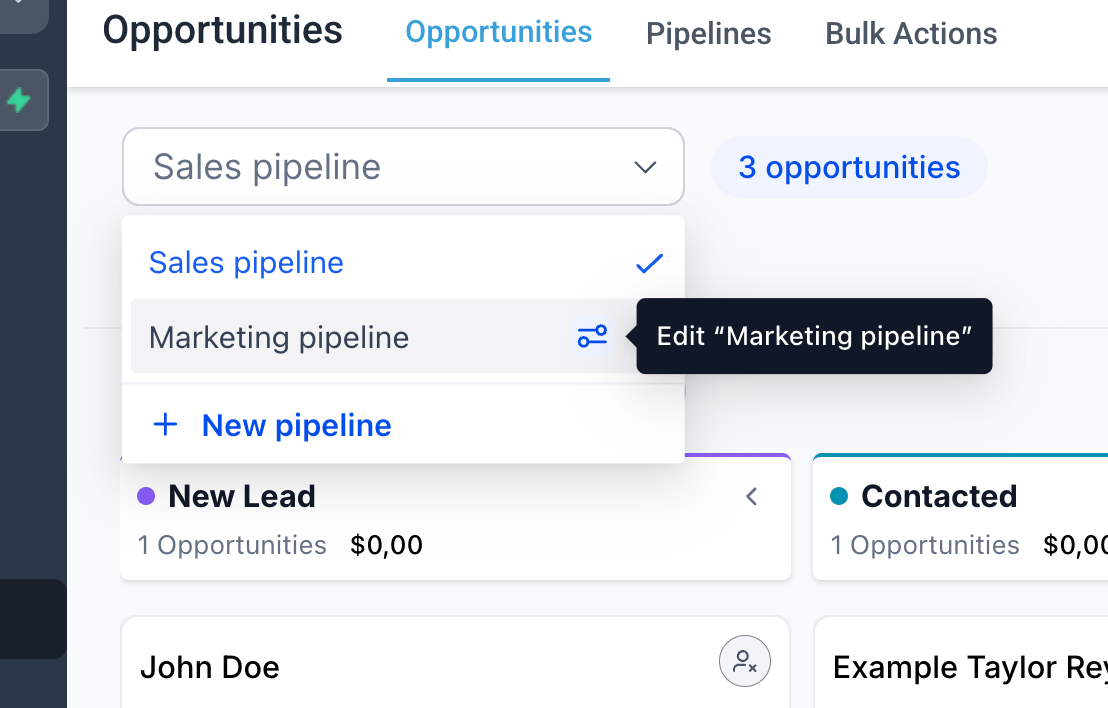
Use the edit icon next to any pipeline to modify it
Create or Edit a pipeline to assign stage colors
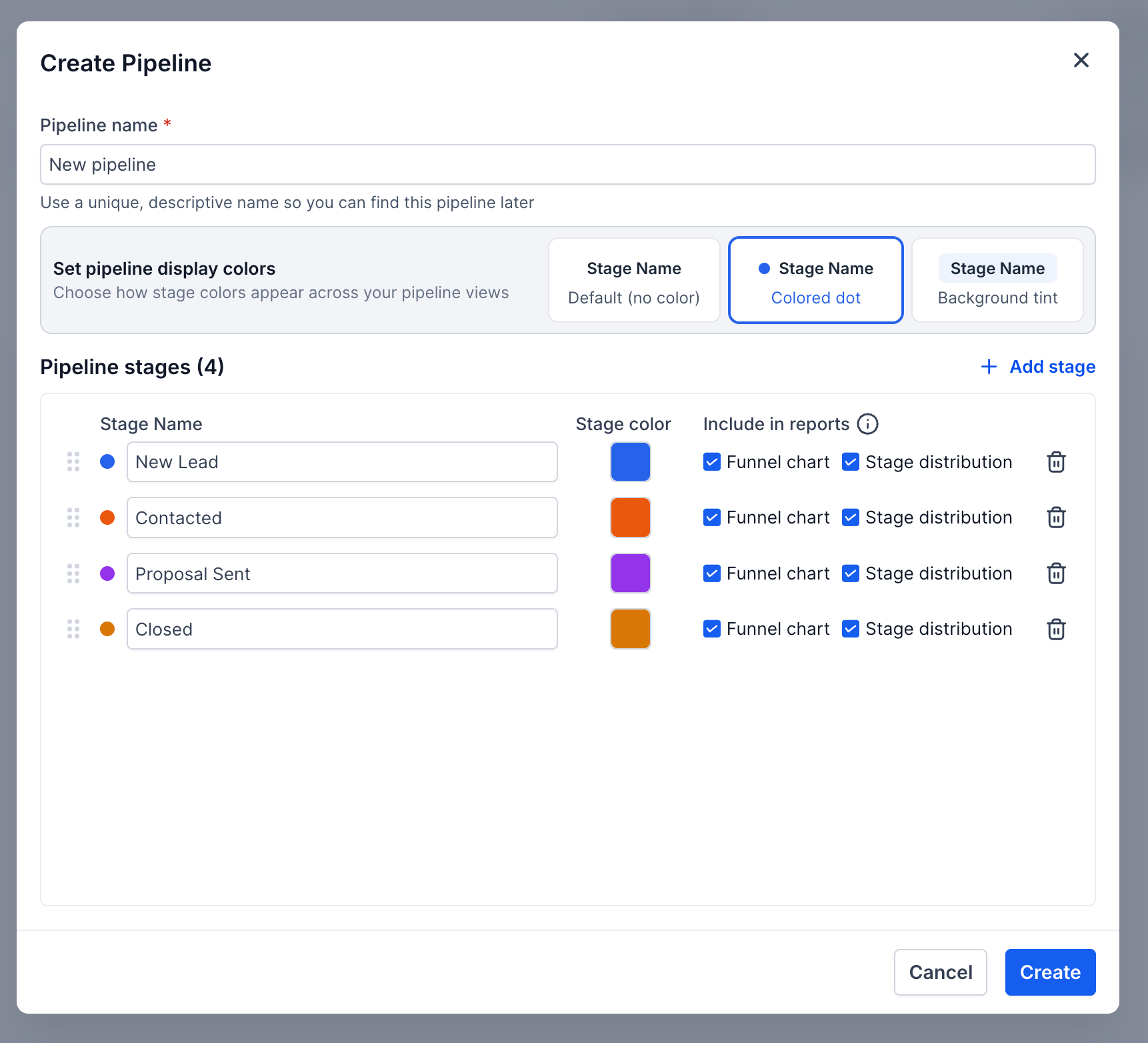
Select your preferred display style (dot or background tint)
Why This Matters
Faster pipeline management without extra navigation
Better visual clarity across stages and deals
Easier to scan pipelines and prioritize work
Consistent experience across views
Notes
Color preferences apply at the pipeline level
All users see the same stage color configuration